Learning Objectives
After completing this lesson, you'll be able to:
- Use an Email Action to send messages in an Automation.
- Configure an Email Action with SMTP account details.
- Describe the differences between the Email Action and Emailer transformer.
In this lesson, you will:
- Optional: Watch a demonstration video (if you have not attended the live training).
- Scroll down to read the activity instructions below and follow the steps in your lab.
- Complete the quiz at the end of this lesson.
- Click 'Next' to mark the lesson complete.
Learning Objectives
After completing this lesson, you'll be able to:
- Use an Email Action to send messages in an Automation.
- Configure an Email Action with SMTP account details.
- Describe the differences between the Email Action and Emailer transformer.
In this lesson, you will:
- Optional: Watch a demonstration video (if you have not attended the live training).
- Scroll down to read the activity instructions below and follow the steps in your lab.
- Complete the quiz at the end of this lesson.
- Click 'Next' to mark the lesson complete.
Resources
Sending Emails
FME Flow Automations can send email notifications to external clients using the Email (send) external action. The Email action requires you to authenticate and validate a connection to an external SMTP email server. Flow uses this email server to send the outgoing emails.
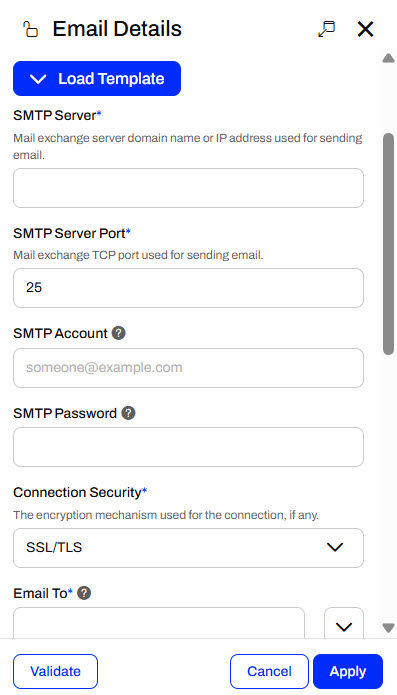
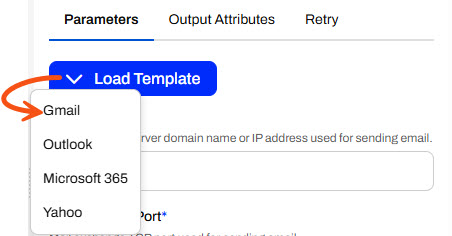
While there are many SMTP connection parameters to configure, FME Flow offers a Load Template option that makes the process a bit easier. You may select email connection templates for Gmail, Outlook, Office 365, or Yahoo. With a template, FME Flow defines the SMTP Server and Port for the email server you are using. You must still fill in your SMTP Account, SMTP Password, and any other connection parameters.
In the Email Details, you also set the email recipients and configure the subject, body, and an optional email attachment. You may send emails to multiple recipients, and optionally carbon copy or blind carbon copy recipients.
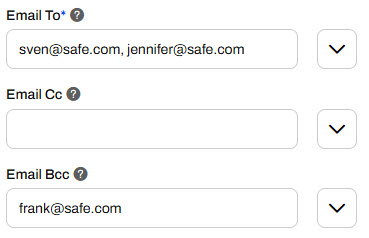
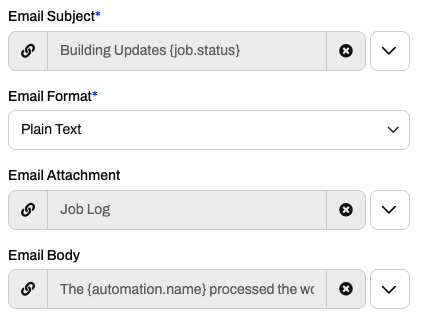
Many of the Email parameters also allow you to use Output Attributes and Automation Parameters to further customize and control your outgoing emails with information from previous actions in the automation. For example, you can set the Email Subject to include the job status of the previous workspace action, attach the job log or any file from Resources, and customize the email body with more information about the automation.
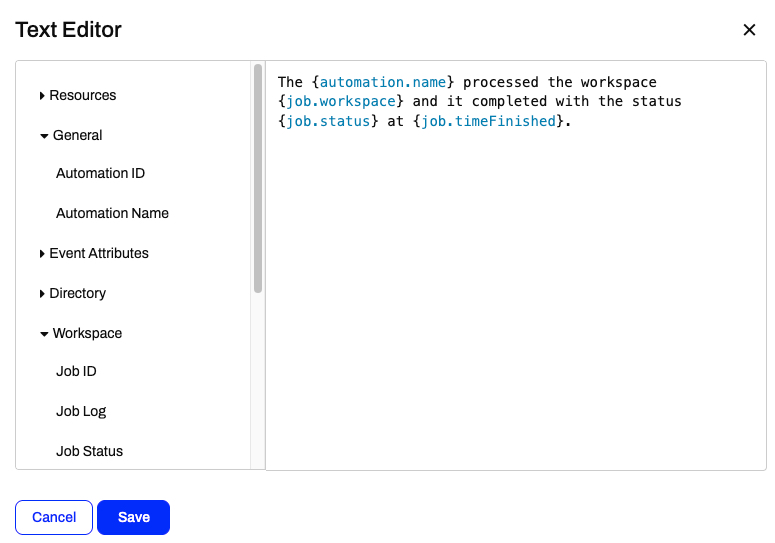
It's easiest to customize the outputs using the Text Editor, where you can select from all the available Output Attributes.
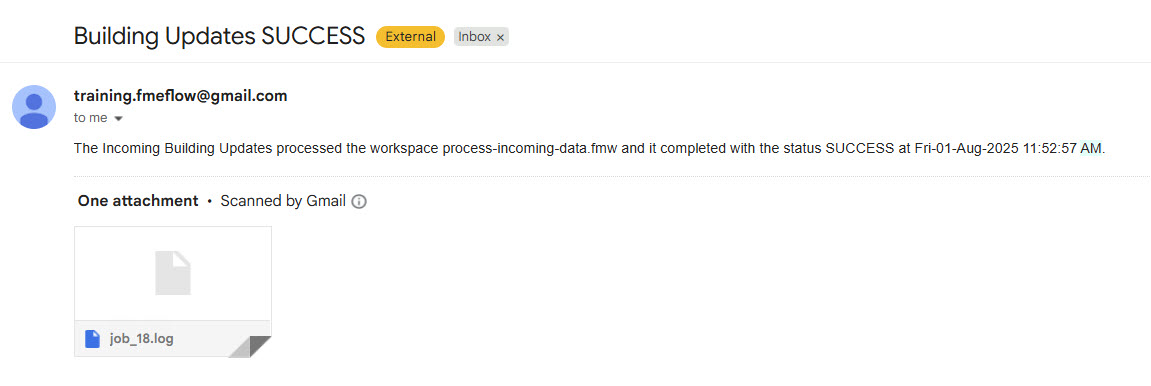
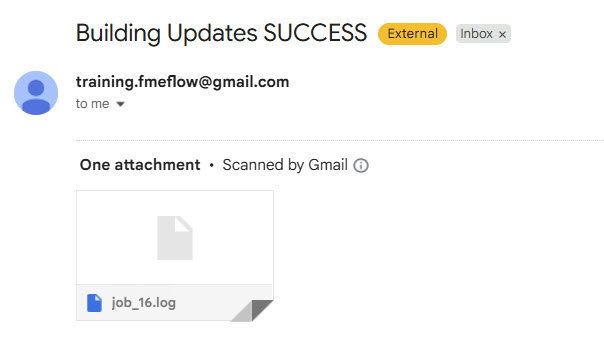
With the previous settings, FME Flow generates an email that looks like this when the automation triggers and runs.
Emailer and Email Action Comparison
You may also be familiar with the Emailer transformer, which sends emails from within workspaces. The Emailer is similar to the Email external action; however, key differences will help you select the most appropriate one for your workflow.
You configure an Emailer with almost the same SMTP account parameters; however, you can use a web connection to access your SMTP email account.
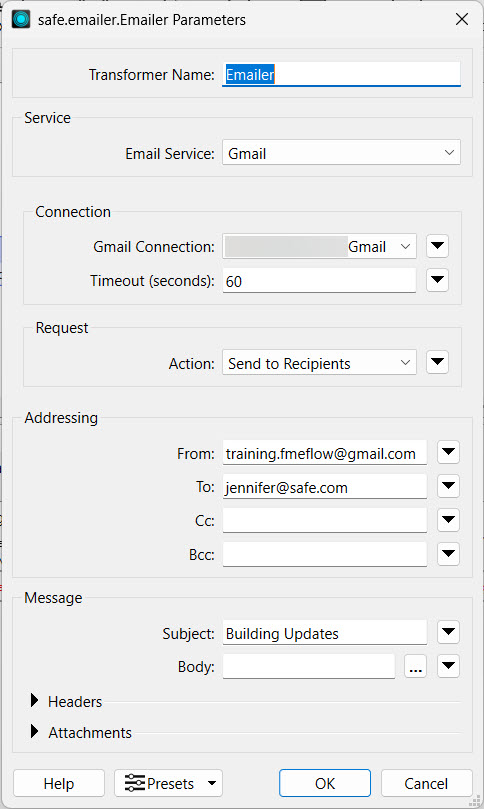
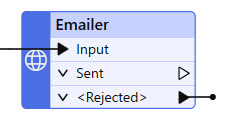
Advantages of using the Emailer include:
- The Emailer lets you send emails from within the workspace while other transformers continue to process. The Email action is separate from the Run a Workspace action and sends the email after the workspace translation completes.
- You can create presets for your email settings and re-reference them in multiple Emailer transformers. (There's a community idea for this within the Email action you can vote on in the FME Community.)
- It is also easier to include attribute values from within the workspace in the Emailer's email, which is also possible with an Email Action following a workspace with an Automation Writer; however, the Emailer is generally easier if your entire workflow is a single workspace.
- The workspace can run on FME Workbench and send an email, not just on FME Flow as with the Email action in Automations.
- You can send multiple attachments with the Emailer, while the Email action only allows one file. The workaround is to use a zip file with the Email action.
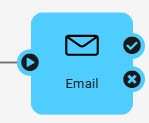
Advantages of the Email action in Automations include:
- Since the Email action sends the email after the workspace is complete, you can include job information in the email, such as the translation status and job log.
- The Email action does not use an FME Engine to process and send the email, freeing up an available engine. The Emailer is part of a running workspace that uses an FME Engine to process.
- You do not need to run a workspace to send emails; Email external actions can connect directly to triggers without any internal actions if you wish.
- Editing the automation makes it easier to maintain and update your email credentials. To update credentials in the Emailer, you must download and edit the workspace on FME Workbench.
- Using the Email action creates separation within your workflow. If the Email action fails, the workspace will still process to completion, whereas a failed Emailer transformer will likely halt the rest of the workspace from completing successfully.
Exercise

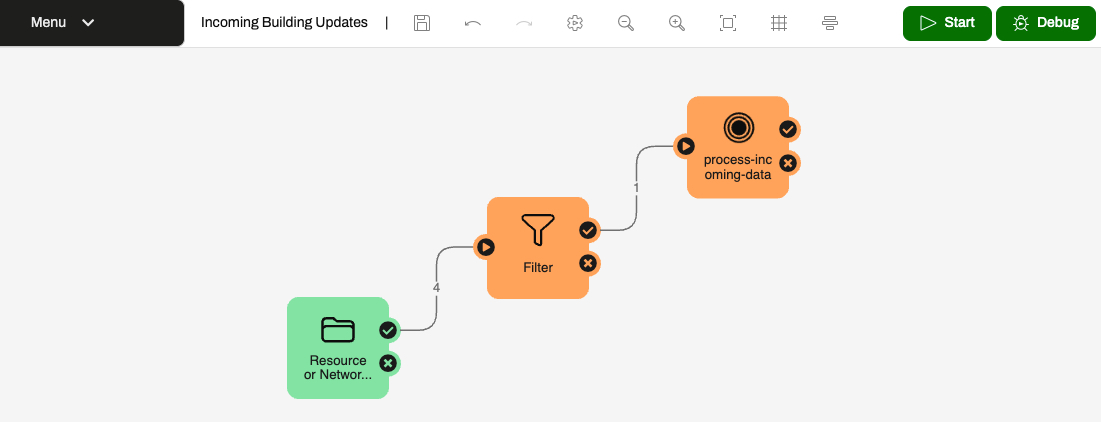
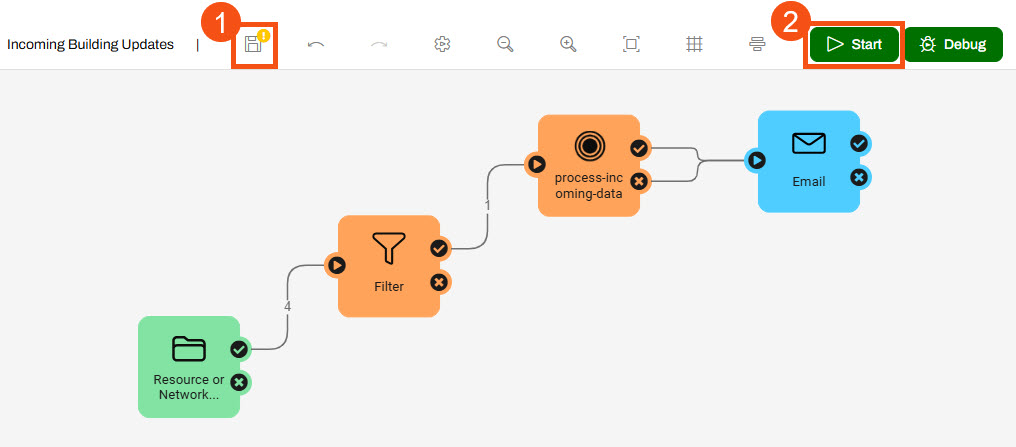
Jennifer continues with her Incoming Building Updates automation. The automation has a Resource or Network Directory trigger that watches for files added to an FME Flow Resources folder, and a Filter action that filters shapefiles. Then, it runs a workspace to process incoming files. It's vital to update the geodatabase with the most recent construction updates, so Jennifer would like to be notified when the workspace runs and its translation status is available.
In this exercise, you will:
- Update the automation to use an Email external action.
- Run the automation and send a notification after the workspace completes.
1) Open Automation
- Navigate to FME Flow and open the Incoming Building Updates automation.
- If the automation is running, stop it to edit it.
2) Add External Action
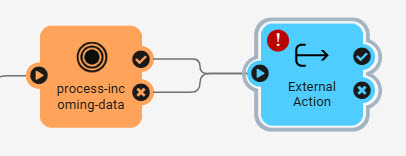
- Add an External Action to the canvas and connect it to the success and failure ports of the process-incoming-data workspace action.
- By connecting the action to both ports, the external action will run whether the workspace translation succeeds or fails.
3) Configure Email Action
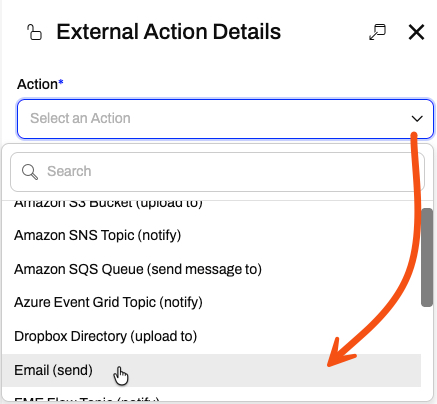
- Open the External Action Details, then select the Email (send) action.
You will configure the action to use a Gmail account for the SMTP credentials.
- Select Gmail from the Load Template option.
- The template pre-populates some of the SMTP parameters specific to Gmail.
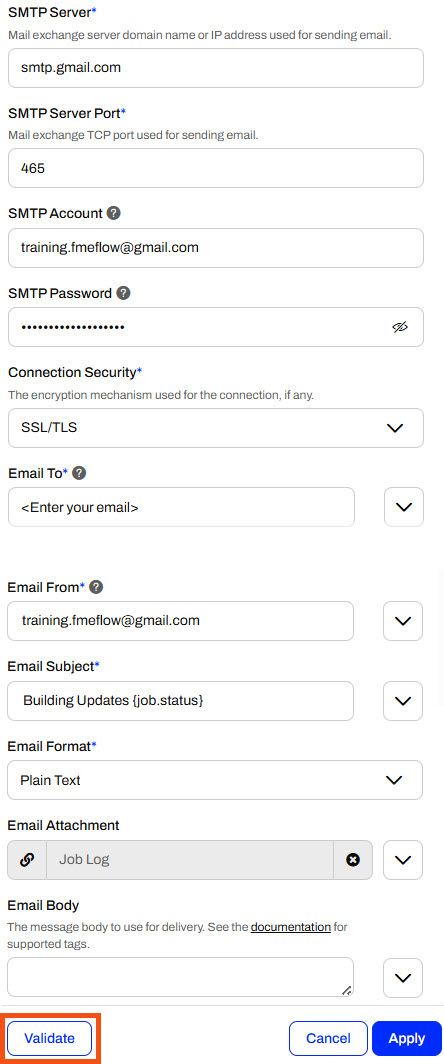
- Enter these values for the SMTP parameters:
- SMTP Account: training.fmeflow@gmail.com
- SMTP Password: wjdmzjdkujkzmplw
- Connection Security: SSL/TLS

This Gmail account password changes regularly. Please only use it for FME training purposes, or configure your SMTP account for the Email action.
- Enter your own email for the Email To parameter.
- Use training.fmeflow@gmail.com for the Email From parameter.
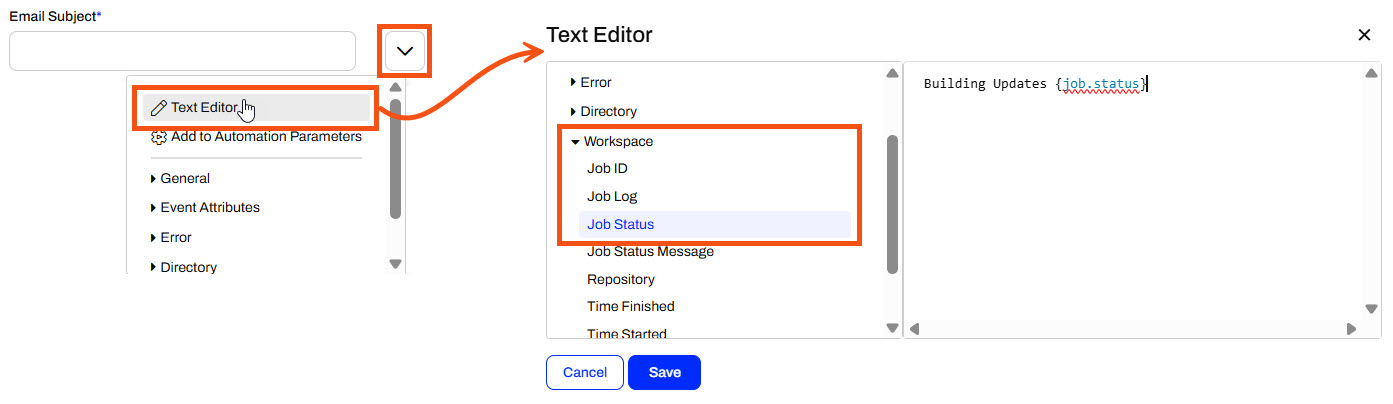
- For the Email Subject, use the drop-down menu to select the Text Editor.
- Type Building Updates and then use the Workspace action output attribute Job Status to indicate whether the translation succeeds or fails in the subject.
- Click Save to close the Text Editor.
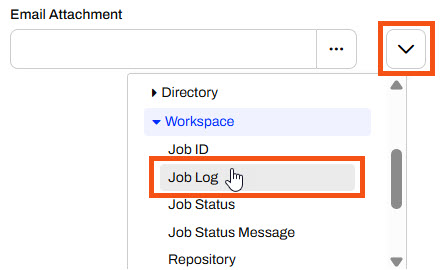
- For the Email Attachment, use the drop-down again and select the Job Log for the workspace.
- Once you enter all required parameters, click Validate to verify your SMTP email settings.
- If validation fails with an Invalid Parameters error, confirm you have filled in all required fields. If you still encounter an error, see FME Flow Troubleshooting: Email.
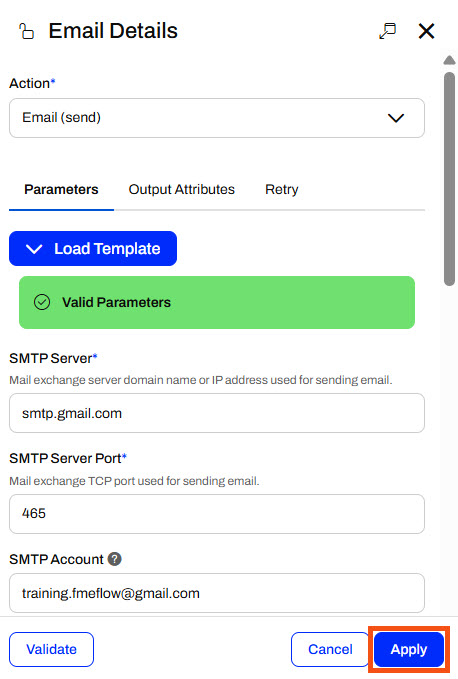
- Once your parameters are valid, click Apply to close the Email action details.
4) Save and Start Automation
- Save and start the automation to monitor the Resources location for files again.
5) Upload Shapefiles
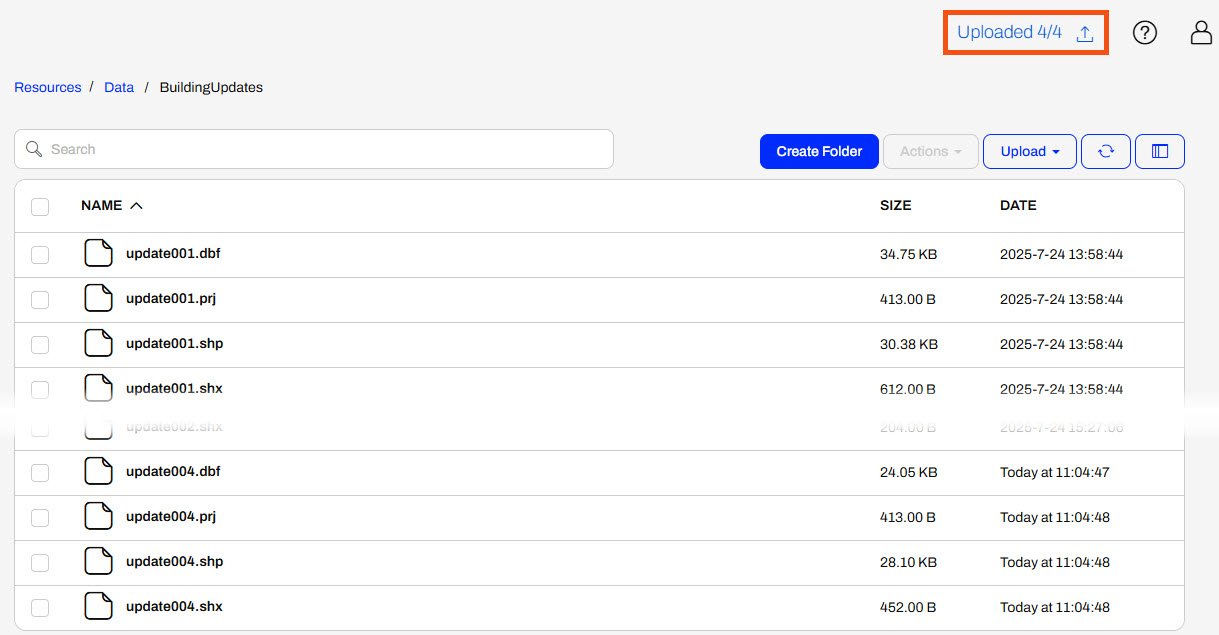
- With your automation running, navigate to Resources > Data > BuildingUpdates.
- Upload another shapefile of building updates (C:\FMEData\Data\Engineering\BuildingFootprints) to the folder.
6) Inspect Email
- Wait a few moments for the automation process to complete, then check your email.
- You should receive an email with the job status in the subject line and the job log as an attachment.
You've now built an entire workflow with FME Flow Automations. You use a trigger to watch for new files, filter them, and run a workspace if they meet the condition. Once your workspace translation is complete, FME Flow sends an email with the job completion status and job log. Jennifer can now monitor her automation from her inbox and let it run and process incoming shapefiles without any repetitive manual effort.
Resources
Sending Emails
FME Flow Automations can send email notifications to external clients using the Email (send) external action. The Email action requires you to authenticate and validate a connection to an external SMTP email server. Flow uses this email server to send the outgoing emails.
While there are many SMTP connection parameters to configure, FME Flow offers a Load Template option that makes the process a bit easier. You may select email connection templates for Gmail, Outlook, Office 365, or Yahoo. With a template, FME Flow defines the SMTP Server and Port for the email server you are using. You must still fill in your SMTP Account, SMTP Password, and any other connection parameters.
In the Email Details, you also set the email recipients and configure the subject, body, and an optional email attachment. You may send emails to multiple recipients, and optionally carbon copy or blind carbon copy recipients.
Many of the Email parameters also allow you to use Output Attributes and Automation Parameters to further customize and control your outgoing emails with information from previous actions in the automation. For example, you can set the Email Subject to include the job status of the previous workspace action, attach the job log or any file from Resources, and customize the email body with more information about the automation.
It's easiest to customize the outputs using the Text Editor, where you can select from all the available Output Attributes.
With the previous settings, FME Flow generates an email that looks like this when the automation triggers and runs.
Emailer and Email Action Comparison
You may also be familiar with the Emailer transformer, which sends emails from within workspaces. The Emailer is similar to the Email external action; however, key differences will help you select the most appropriate one for your workflow.
You configure an Emailer with almost the same SMTP account parameters; however, you can use a web connection to access your SMTP email account.
Advantages of using the Emailer include:
- The Emailer lets you send emails from within the workspace while other transformers continue to process. The Email action is separate from the Run a Workspace action and sends the email after the workspace translation completes.
- You can create presets for your email settings and re-reference them in multiple Emailer transformers. (There's a community idea for this within the Email action you can vote on in the FME Community.)
- It is also easier to include attribute values from within the workspace in the Emailer's email, which is also possible with an Email Action following a workspace with an Automation Writer; however, the Emailer is generally easier if your entire workflow is a single workspace.
- The workspace can run on FME Workbench and send an email, not just on FME Flow as with the Email action in Automations.
- You can send multiple attachments with the Emailer, while the Email action only allows one file. The workaround is to use a zip file with the Email action.
Advantages of the Email action in Automations include:
- Since the Email action sends the email after the workspace is complete, you can include job information in the email, such as the translation status and job log.
- The Email action does not use an FME Engine to process and send the email, freeing up an available engine. The Emailer is part of a running workspace that uses an FME Engine to process.
- You do not need to run a workspace to send emails; Email external actions can connect directly to triggers without any internal actions if you wish.
- Editing the automation makes it easier to maintain and update your email credentials. To update credentials in the Emailer, you must download and edit the workspace on FME Workbench.
- Using the Email action creates separation within your workflow. If the Email action fails, the workspace will still process to completion, whereas a failed Emailer transformer will likely halt the rest of the workspace from completing successfully.
Exercise
Jennifer continues with her Incoming Building Updates automation. The automation has a Resource or Network Directory trigger that watches for files added to an FME Flow Resources folder, and a Filter action that filters shapefiles. Then, it runs a workspace to process incoming files. It's vital to update the geodatabase with the most recent construction updates, so Jennifer would like to be notified when the workspace runs and its translation status is available.
In this exercise, you will:
- Update the automation to use an Email external action.
- Run the automation and send a notification after the workspace completes.
1) Open Automation
- Navigate to FME Flow and open the Incoming Building Updates automation.
- If the automation is running, stop it to edit it.
2) Add External Action
- Add an External Action to the canvas and connect it to the success and failure ports of the process-incoming-data workspace action.
- By connecting the action to both ports, the external action will run whether the workspace translation succeeds or fails.
3) Configure Email Action
- Open the External Action Details, then select the Email (send) action.
You will configure the action to use a Gmail account for the SMTP credentials.
- Select Gmail from the Load Template option.
- The template pre-populates some of the SMTP parameters specific to Gmail.
- Enter these values for the SMTP parameters:
- SMTP Account: training.fmeflow@gmail.com
- SMTP Password: wjdmzjdkujkzmplw
- Connection Security: SSL/TLS
This Gmail account password changes regularly. Please only use it for FME training purposes, or configure your SMTP account for the Email action.
- Enter your own email for the Email To parameter.
- Use training.fmeflow@gmail.com for the Email From parameter.
- For the Email Subject, use the drop-down menu to select the Text Editor.
- Type Building Updates and then use the Workspace action output attribute Job Status to indicate whether the translation succeeds or fails in the subject.
- Click Save to close the Text Editor.
- For the Email Attachment, use the drop-down again and select the Job Log for the workspace.
- Once you enter all required parameters, click Validate to verify your SMTP email settings.
- If validation fails with an Invalid Parameters error, confirm you have filled in all required fields. If you still encounter an error, see FME Flow Troubleshooting: Email.
- Once your parameters are valid, click Apply to close the Email action details.
4) Save and Start Automation
- Save and start the automation to monitor the Resources location for files again.
5) Upload Shapefiles
- With your automation running, navigate to Resources > Data > BuildingUpdates.
- Upload another shapefile of building updates (C:\FMEData\Data\Engineering\BuildingFootprints) to the folder.
6) Inspect Email
- Wait a few moments for the automation process to complete, then check your email.
- You should receive an email with the job status in the subject line and the job log as an attachment.
You've now built an entire workflow with FME Flow Automations. You use a trigger to watch for new files, filter them, and run a workspace if they meet the condition. Once your workspace translation is complete, FME Flow sends an email with the job completion status and job log. Jennifer can now monitor her automation from her inbox and let it run and process incoming shapefiles without any repetitive manual effort.